User scenario:
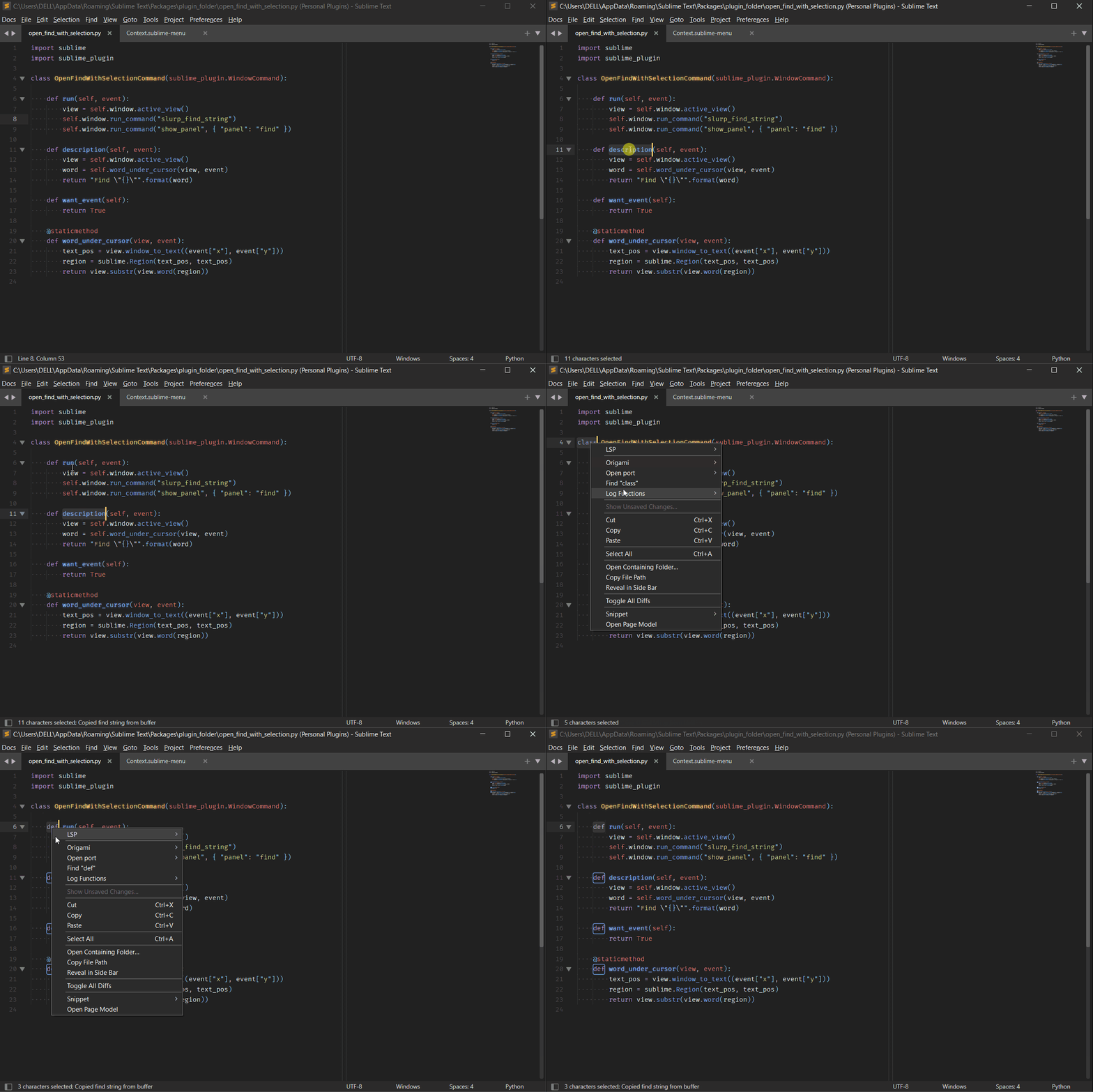
- Select any text.
- Right click to open context menu:
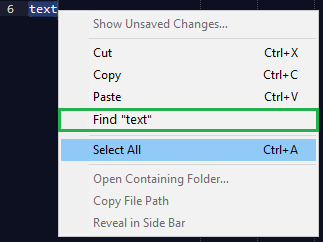
- Select “Find [text]” option.
- Regular Find UI is opened:

How to implement “Find [text]” option in context menu?

User scenario:
How to implement “Find [text]” option in context menu?
You will require a plugin for this. The following plugin does what you want. You will need to save it as a python file with any name (doesn’t matter, but you can choose the name I have given it) in the User directory (Preferences -> Browse Packages ... to get to User)
Plugin name: open_find_with_selection.py
import sublime
import sublime_plugin

class OpenFindWithSelectionCommand(sublime_plugin.WindowCommand):

    def run(self, event):
        self.window.run_command("slurp_find_string")
        self.window.run_command("show_panel", { "panel": "find" })

    def description(self, event):
        view = self.window.active_view()
        word = self.word_under_cursor(view, event)
        return "Find \"{}\"".format(word)

    def want_event(self):
        return True

    @staticmethod
    def word_under_cursor(view, event):
        text_pos = view.window_to_text((event["x"], event["y"]))
        region = sublime.Region(text_pos, text_pos)
        return view.substr(view.word(region))
You will also need to create a User/Context.sublime-menu if you haven’t created one and put the following in there.
Context.sublime-menu
Note: Do not put any caption for it. That’s taken care by the plugin.
[
    {
        "command": "open_find_with_selection",
    },
]
If you have done this correctly, you should get the following (as per your requirement).
Can’t you just do ctrl+d followed by ctrl+f ? Or am I missing something (most probably) ? Mind you useful to know these things !
You can (and that’s what I’d use). But to each his(her) own ways of doing things. There is nothing wrong with the above approach (though it is definitely a long cut way of doing things)