Sublime Forum

Horizontal split view of current file

#1

Hi,

I have been searching for a way to split the screen into two rows; both displaying the current file, using a keyboard shortcut. There are some old ST2 plugins, but otherwise this seems unsolved.

Two letter box views of the same file is a common request to review two parts of the same file - many editors have a keyboard shortcut.

I would prefer to avoid python code, with the ‘chain’ command is it now possible to create a keyboard shortcut in Sublime Text 4?

Sorry I can’t find the correct commands to combine by my self.

Kind Regards Gavin Holt
1 Like

#2

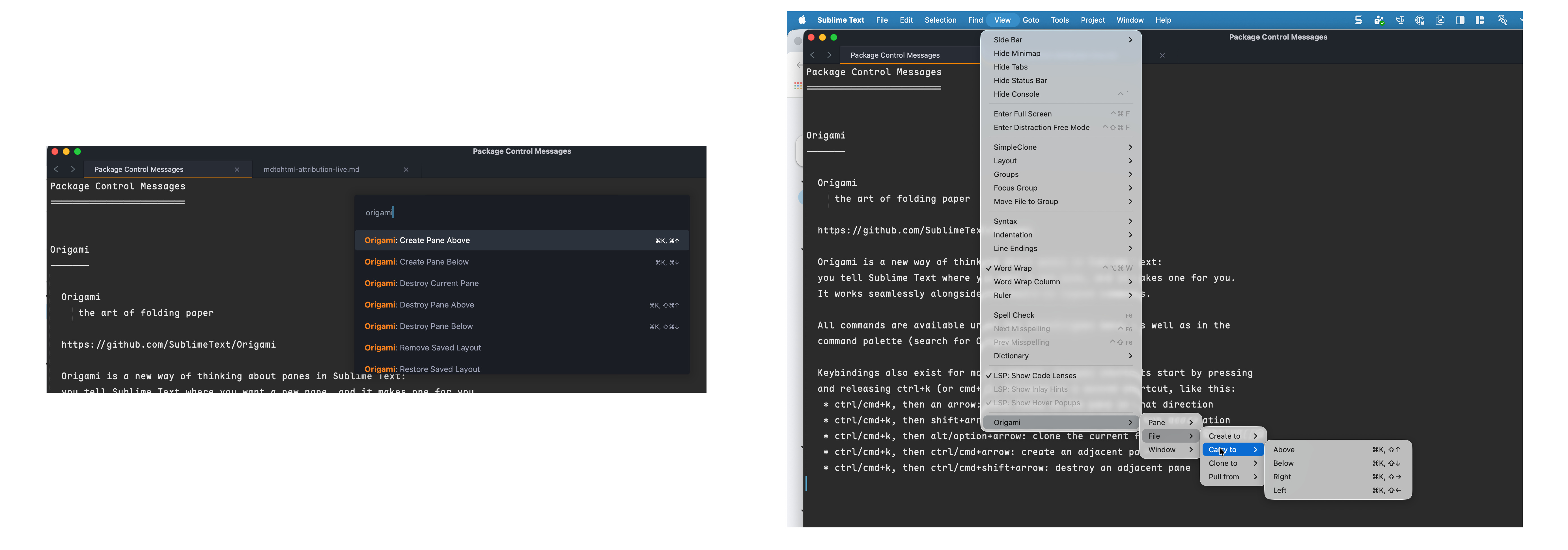
The package Origami can do that.

  • Option: clone file to …
1 Like

#3

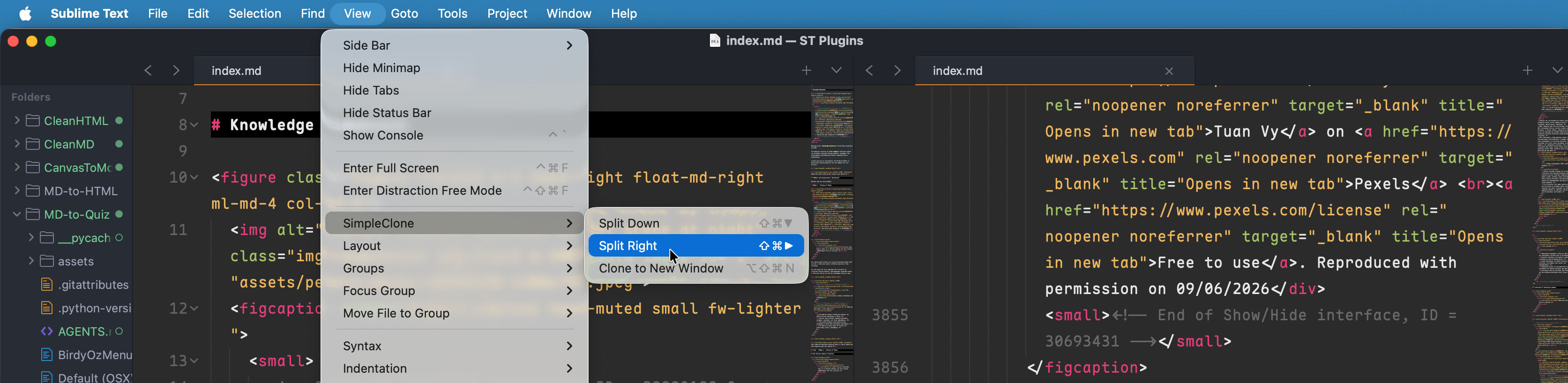
SimpleClone can also do this - It is old, but still works. Origami is much more feature rich, but depending on you needs, less is sometimes more

0 Likes

#4

I’m on Pop!-OS 24.04 with Cosmic, updated yesterday.

Ctrl+k, then ctrl+arrow: create an adjacent pane
–> often works…
ctrl+k, then ctrl+shift+arrow: destroy an adjacent pane
–> never works…
Menu -> View -> Origami -> Pane -> Destroy … does work.

Clone the current file to destination: Ctrl+K, Alt+Arrows
–> never works…
Menu -> View -> Origami -> File -> Clone to -> … does.

Any ideas why these fail? Would be so handy!

0 Likes

#5

When in doubt, look to the ST console (CTRL + `). Often failure messages give you clues to the cause

1 Like

#6

Nothing appears in the console for keyboard commands (failure every time tonight) or menu choices (always work).

Nothing happens on the edit pane for a single Ctrl+K.
A second one sometimes deletes the current line right of the cursor, and the newline at its end.

Ctrl+K, then ctrl+shift+arrow scrolls the edit view one line in arrow direction.

Ctrl+shift+(up/down)arrow moves the cursor line (up/down) beyond the adjacent line.

Maybe there is some console trick I don’t know?

i

0 Likes

#7

The other possibility is a keybinding conflict. Those keypresses are invoking a different function. The way to test this would be to paste this into the console:

sublime.log_commands(True). This will then log every keystroke, mouse move etc. Be aware, it can get very noisy. Press the keybindings and see whether it is trying to call the correct command.

Once you are done, reverse this by sublime.log_commands(False)

If all else fails, visit the Origami github issues and see if anyone else has the same problem.

0 Likes

#8

I use it on macOS and Fedora Linux.

On both machines, there are no problems—every keybinding works.
As gbird wrote,

it’s most likely a conflict with another keybinding.

However, in my experience, I have to press these keys fairly quickly for the key binding to work properly.

0 Likes

#9

Thanks!

I think that might be my problem! I’m ancient, and have lousy vision and horrible hand tremor. I can barely do Ctrl+k Ctrl+down fast enough for it to work sometimes. I did get Ctrl+k Shift+down to work, once, by pre-positioning fingers of each hand on the key pairs.

All the other options require fancy keyboard skill - I just can’t.

Unless that time limit can be adjusted, I give up!

Loren

0 Likes

#10

You could always set the key bindings to something you feel comfortable with and meet your motor skills. Or use the command palette or ‘View > Origami’ menu items that don’t require the same dexterity.

0 Likes

#11

In addition, here is a link to documentation on changing key bindings

0 Likes