
How I can change selected text color in quick or search panel inputs?
Change UI attributes color in theme
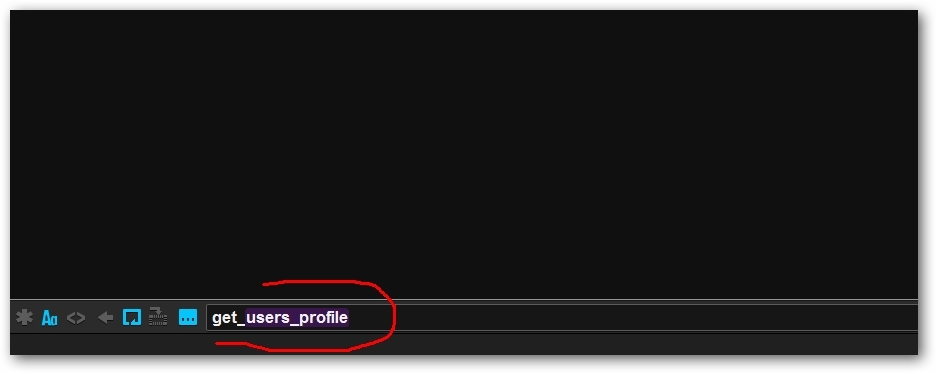
In your .stTheme or .tmTheme Color Scheme file:
This is the text color:
foreground
#E0E0E0
This is the selection background:
selection
#333333
0 Likes
LONGMAN
#4
[quote=“robertcollier4”]In your .stTheme or .tmTheme Color Scheme file:
This is the text color:
foreground
#E0E0E0
This is the selection background:
selection
#333333[/quote]
No, it’s changes editor text color/selection, not UI inputs
0 Likes
In Sublime Text 3, the “foreground” and “selection” of the Color Scheme do change the text color and selection background of the find panel.
For the quick panel, look for the following in your .sublime-theme Theme.
//background of entire quick panel box
“class”: “overlay_control”,
“layer0.texture”: “”,
“layer0.tint”: [64, 64, 64],
	//background of a row entry of quick panel
	"class": "quick_panel_row",
	"layer0.texture": "",
	"layer0.tint": [32, 32, 32],

	//background (selected) of a row entry of quick panel
	"class": "quick_panel_row",
	"attributes": "selected"],

	//quick panel text
	"class": "quick_panel_label",
	"fg": [190, 190, 190, 255],
0 Likes
strombus
#7
Hi, is there a way to change the foreground colour of selected text?
When using a dark theme (ie. dark background), a coloured selection background just makes the selected text difficult to read. So it would be ideal to have a coloured background with a black foreground. This is how most editors behave, but I can’t see how to do it in Sublime. Is there a way?
0 Likes