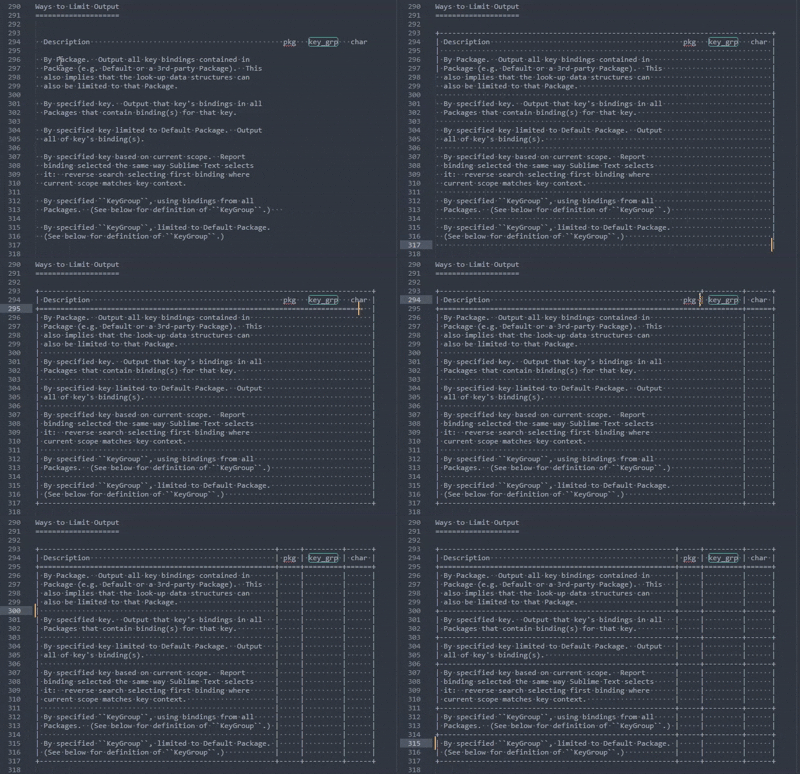
In my daily work, I was finding I was going back to my old (no longer supported) programmer’s editor in order to do one last thing: draw reStructuredText tables because it had a feature that made this easy.
The BoxDrawing Package makes it even easier, with better behavior, and supports both ASCII and several Unicode character sets.
Some more examples:
┌─┬┐  ╔═╦╗  ╓─╥╖  ╒═╤╕    +------------+----------------+
│ ││  ║ ║║  ║ ║║  │ ││    | Column One | Column Two     |
├─┼┤  ╠═╬╣  ╟─╫╢  ╞═╪╡    +============+================+
└─┴┘  ╚═╩╝  ╙─╨╜  ╘═╧╛    |            |                |
╭───────────────────╮     +------------+----------------+
│  ╔═══╗ Some Text  │     |            |                |
│  ╚═╦═╝ in the box │░    +------------+----------------+
╞═╤══╩══╤═══════════╡░    |            |                |
│ ├──┬──┤           │░    +------------+----------------+
│ └──┴──┘           │░    |            |                |
╰───────────────────╯░    +------------+----------------+
  ▒▒▒▒▒▒▒▒▒▒▒▒▒▒▒▒▒▒▒░
Features
- Draw using intuitive key combinations with arrow keys.
- Arrow-key bindings are temporary, while Box Drawing is turned ON. You turn it OFF again when you are done.
- Intuitively overwrites characters where directed as if always in “overwrite” mode.
- There is no need to add spaces to short lines. The package extends short lines with spaces automatically when needed, enabling you to conveniently draw wherever you direct it.
- Initially uses ASCII or one of the Unicode box-drawing character sets, depending on a user-configurable setting. (See below.)
- Conveniently switch between character sets with one keystroke.
- Box drawing with the ASCII character set is compatible with the requirements of reStructuredText tables. (The ASCII table above is an example.)
- The current state of the BoxDrawing Package can be seen:
- Tools > BoxDrawing > sub-menu items, and
- in the status bar for 4 seconds after each state change.
- Supports these character sets:
- ASCII
- Unicode [Square Corners]
- Unicode [Round Corners]
- Unicode [2 Dashes]
- Unicode [3 Dashes]
- Unicode [4 Dashes]
- Shadow Characters
Usage
-
In any type of document, ensure there is just 1 selection (caret) and that no text is selected.
-
Turn Box-Drawing ON using Alt-Keypad / or
Tools > BoxDrawing > Enabledor from the Command PaletteBoxDrawing: Toggle ON/OFF. (A temporary Status-Bar message “Box Drawing ON/OFF (<char_set>)” shows which mode the current View is in.) TheTools > BoxDrawing > Enabledmenu item always shows the ON/OFF state for the current View by showing a checkmark (✓) next to that menu item when Box Drawing is enabled. -
Draw using single lines using the arrow keys while the Alt key is held down.
-
Draw using double lines using the arrow keys while the Alt-Shift keys are held down.
-
Erase using the arrow keys while the Alt-Shift-Ctrl keys are held down.
-
Change current character set using Alt-Keypad * or
Tools > BoxDrawing > Change Character Set (char_set)or from the Command PaletteBoxDrawing: Change Character Set. (A temporary Status-Bar message “Box Drawing ON/OFF: (char_set)” shows which character set is now current.) TheTools > BoxDrawing > Change Character Set (char_set)menu item always shows the current character set in parentheses. -
When you are done drawing, turn Box-Drawing OFF again with Alt-Keypad / or
Tools > BoxDrawing > Enabledor from the Command PaletteBoxDrawing: Toggle ON/OFF.
Key Bindings
This Package provides the following customizable key bindings:
| Key Combination | Meaning |
|---|---|
| Alt-Keypad / | Turn Box Drawing ON or OFF |
| Alt-Keypad * | Switch character sets (ASCII <==> Unicode) |
| Alt-(Left|Right|Up|Down) | Draw with single lines[^1] |
| Alt-Shift-(Left|Right|Up|Down) | Draw with double lines[^1] |
| Ctrl-Alt-Shift-(Left|Right|Up|Down) | Erase[^1] |
[^1]: when BoxDrawing is ON
When Box-Drawing is ON for a particular View, the Package temporarily overrides the normal key bindings for the arrow-key combinations for that View only. When Box Drawing is turned OFF again, normal key bindings for the arrow keys are resumed. Alt-Keypad / and Alt-Keypad * both remain bound to the ON/OFF and switch character sets Commands full time.